Creating Your First Bot
A detailed, step-by-step tutorial for creating a welcome bot using the VibeBot Bot Builder.
What We'll Build
A welcome bot that:
- Greets new members when they join your server
- Assigns a "Member" role automatically
- Sends a welcome message to a specific channel
Prerequisites
- A VibeBot account (sign up for free at vibebot.gg)
- A Discord account
- A Discord server where you have admin permissions
- A welcome channel in your Discord server (we'll use #welcome)
- A role to assign to new members (we'll use @Member)
Step 1: Create a New Bot
Log in to your VibeBot dashboard and click the "New Bot" button. This opens a 3-step setup wizard that handles everything: naming your bot, connecting to Discord, and selecting your server.
- Name your bot— Enter a name like "Welcome Bot" (up to 32 characters) and click "Connect Discord".
- Set up Discord credentials— The wizard walks you through:
- Opening the Discord Developer Portal and creating a new application
- Navigating to the Bot page and enabling both Privileged Gateway Intents that VibeBot uses: Server Members and Message Content. Leave Presence off unless the Put live message names it.
- Copying your bot token and pasting it into the wizard
- Clicking "Test Intents" to verify everything is set up correctly
- Invite & select server— Click "Invite Bot" to add your bot to a Discord server, then click "Find Servers" to select which server to use.
Click "Create Bot"and you'll be taken to the bot builder. Your Discord token and server are already connected!
Note
Step 2: Describe What You Want
Describe what you want your bot to do in natural language.
Referencing channels and roles
Channel References
Use #channel-name to reference a channel.
Send message to #welcomeRole References
Use @role-name to reference a role.
Give them @Member role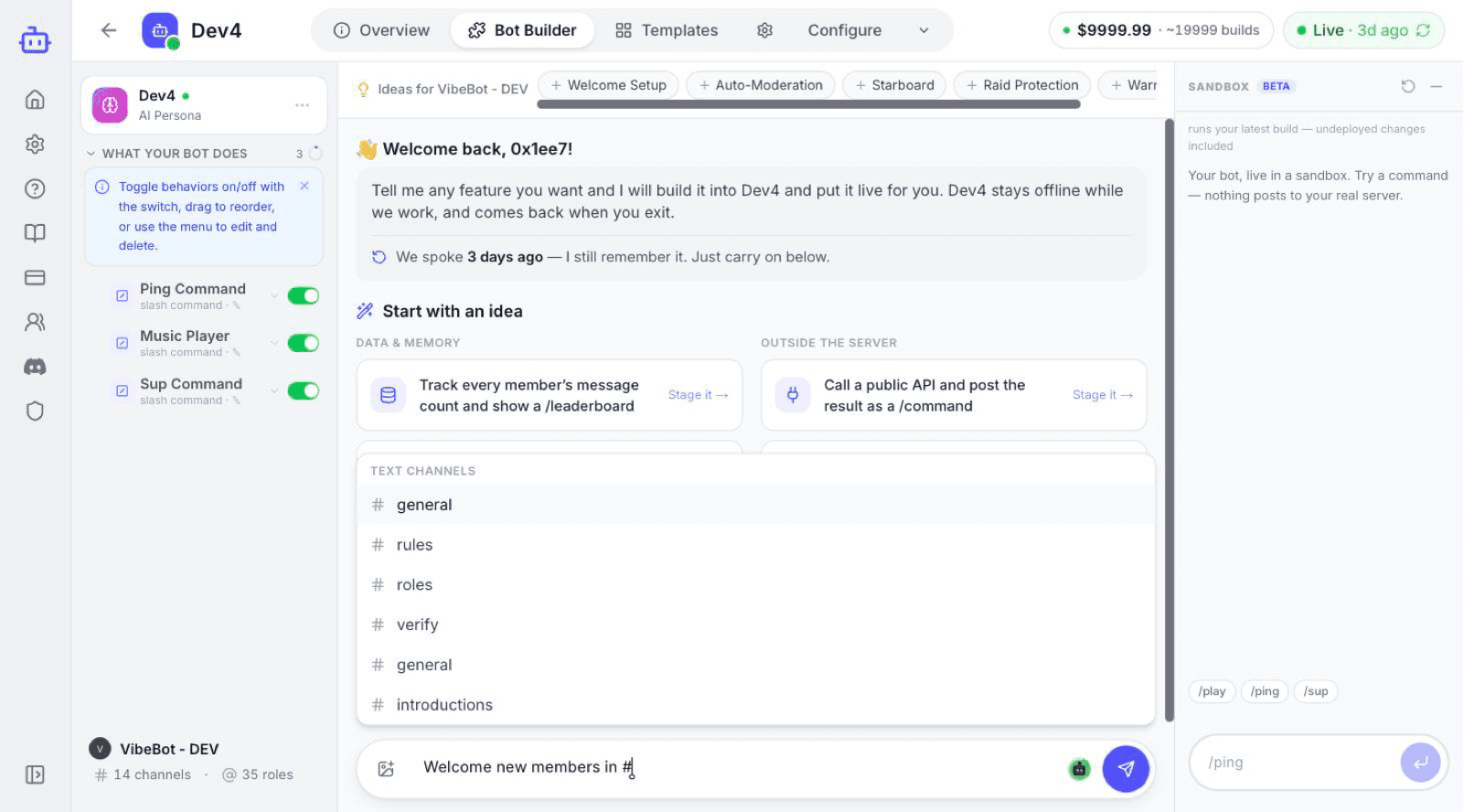
Writing Your Prompt
In the Bot Builder, type the following:
When someone joins the server, send a welcome message in #welcome that says "Welcome to the server, [username]! We're glad to have you here." and give them the @Member role.Send it, then click "Start building" when the builder asks you to confirm. If your bot is already running, it stays online and answers your members while the builder works, usually a few minutes for a feature like this. Yours is brand new and has not started yet, so there is nothing to keep online — it goes live when you finish. A bot that runs its own code is paused while you build either way, because only one copy can hold the Discord connection.
Step 3: Watch It Build
The work shows up as a run you can open. It folds its steps under plain labels — reading your bot, checking for problems, publishing to your bot — and shows the run's step count and price as it goes.
If anything is ambiguous, the builder asks you before it ships and waits for your answer. When the feature is ready, the builder saves it. Press Done, and your changes go live. Or press Put them live now, and the chat stays open. You do not need the Put live button in the header for builder work. Want the message worded differently? Say so in the same conversation and it changes it.
Step 4: Finish the Session
The builder already saved the welcome feature during the session. All that is left is to finish up, which is what puts it in front of your members.
- Click the Done button on the banner
It reads "Done — bring it back online" while your bot is not running yet, which is where you are now: you created it a few minutes ago and it has not been started. Once your bot is up and answering, the same button reads "Done — put your changes live", because there is nothing to bring back — it never left.
- Come back any time
The builder remembers the conversation. Open the Bot Builder tab later and carry on where you stopped.
Step 5: Test Your Bot
To test your welcome bot, you have a few options:
- Option 1: Join with an Alt Account
Use an alternate Discord account to join your server and trigger the welcome message.
- Option 2: Have a Friend Join
Invite a friend to join your server temporarily to test the bot.
- Option 3: Leave and Rejoin
Leave your server and rejoin it (though you'll lose any roles).
Congratulations
You created and deployed your first Discord bot with VibeBot. The bot now welcomes every new member automatically.